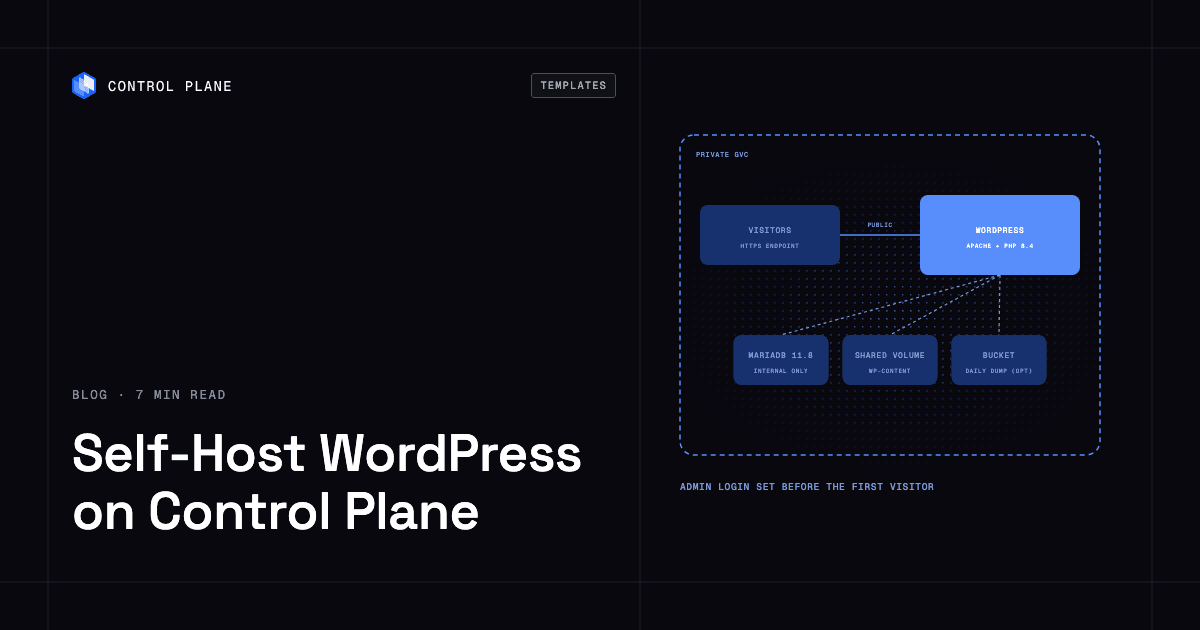
To self-host WordPress on Control Plane, create three secrets (the admin login, the database login, and the MariaDB root password) and install the WordPress template from the Template Catalog, Control Plane’s library of ready-to-install apps. You get Apache with PHP, a bundled MariaDB database, a persistent content volume, an HTTPS address, and an administrator account that exists before the first visitor arrives.
Your marketing site runs on a shared host with a plugin you cannot update, a 2 MB upload limit, and a control panel nobody remembers the login for. You still want WordPress, because the editors know it and the themes and plugins are the point: its own site calls it “the open source publishing platform of choice for millions of websites worldwide.” What you want is a better place to put it, with a database, durable storage for uploads, a sensible upload limit, and no setup screen left open on a public URL.
Why self-host WordPress on Control Plane
- An HTTPS address on day one. The site and
/wp-adminanswer on a*.cpln.appendpoint as soon as the deployment is ready. - Three secrets, no passwords in Helm. Each credential lives in a Control Plane secret you create, and the chart reads it by name.
- A database with no public address. MariaDB listens on port 3306 inside the Global Virtual Cloud (GVC), Control Plane’s term for the set of locations a workload runs in, and accepts no traffic from the internet.
- An identity scoped to two secrets. A Control Plane identity and policy let WordPress reveal the admin and database secrets and no others, plus view its own GVC for a boot-time location check. The root password stays out of its reach.
- Logs and metrics already on. No agent or plugin needed, and tracing is available to turn on.
Included out of the box
- WordPress 7.1.4 on PHP 8.4 and Apache, serving the site and the dashboard on port 80
- A bundled MariaDB 11.8 server, one stateful instance on its own 10 GiB volume
- A shared 10 GiB volume set, Control Plane’s managed persistent storage for a workload, holding core, plugins, themes, uploads, and
wp-config.php - PHP upload limit raised to 64M and memory limit set to 256M, both adjustable
- A health endpoint at
/cpln-health.phpthat answersokonly when PHP, the database, and the install all work - Optional phpMyAdmin, reachable only inside the GVC by default
- Optional daily database dumps to AWS S3 or Google Cloud Storage
How the WordPress admin account is created
A fresh WordPress install serves its setup screen to whoever reaches it first. This template runs the installer at boot from your admin secret (username, password, email) before Apache starts listening, so the first page anyone sees is your site. The secret is read on first boot only; a lost password is reset with a one-line cpln workload exec command from the template docs (cpln is Control Plane’s command-line tool).
Where WordPress uploads are stored
Stock PHP rejects uploads over 2 MB, so the template raises the limit to 64M. Everything an editor adds lands on the content volume, along with plugins, themes, and the generated config, so a restart picks up where it stopped.
The content volume is a shared volume set: one volume per location, mounted by every replica there, which is how two replicas serve one media library and one set of plugins. On cloud locations, Control Plane keeps shared volume data in object storage through JuiceFS and runs the metadata store for you.
Core, plugins, and themes update from the dashboard; a newer wordpress.image changes PHP and Apache only, because the image seeds the volume only while it is empty.
How to back up WordPress on Control Plane
Database backups are off by default. Set mariadb.backup.enabled: true, choose aws or gcp, and point the template at a bucket and a Control Plane cloud account. A cron workload then runs mysqldump daily at 02:00 UTC (the bundled MariaDB template’s default) and uploads a gzipped dump under wordpress/backups. The dumps live off-site, so they survive an uninstall, and nothing deletes old ones, so set a lifecycle rule on the bucket. To restore, load a dump as root through a cpln port-forward tunnel, following the MariaDB template docs.
A dump covers posts, pages, users, and settings, and leaves out the media library, plugins, and themes on the content volume. Shared volume sets do not support snapshots, so the template takes none, and uninstalling the release deletes the volume. Keep your own copy of wp-content/uploads, and copy it back onto the content volume to restore the media library. The cpln CLI can copy it out of a running replica:
cpln cp RELEASE_NAME-wordpress:/var/www/html/wp-content/uploads ./uploads --gvc GVC_NAMEHow to secure the WordPress admin
- Generate the admin password with
openssl rand, as the docs do. - Add two-factor authentication and login throttling. WordPress core ships neither, and its Advanced Administration Handbook recommends both, plus disabling XML-RPC if you do not use it. With public access on,
/wp-login.phpand/xmlrpc.phpare reachable from any address, as on any public WordPress site. - Keep phpMyAdmin internal. It is off by default and internal-only when enabled.
mariadb.phpMyAdmin.publicAccess.enabled: trueputs a database console on the internet, where a valid database password is all anyone needs. - Install an SMTP plugin. The container has no mail transport, so password-reset emails are not sent until you add one.
How to keep WordPress private
To keep the site off the internet, set publicAccess.enabled: false and reach it with cpln port-forward. WordPress builds every link from its site URL, so set wordpress.siteUrl to http://localhost:8080 while you use the tunnel, and back to "" or your domain before you go public.
internalAccess.type decides which workloads may reach WordPress: same-gvc (the default), same-org, workload-list, or none. Firewall changes take from 30 seconds to a few minutes to apply.
How to scale WordPress on Control Plane
Because replicas share one volume and one database, wordpress.replicas: 2 or more keeps the site up while a WordPress replica restarts. The count is fixed, since the template turns autoscaling off. MariaDB is a single instance, so the site is down while the database restarts. To grow vertically, raise wordpress.resources, mariadb.resources, and volumeset.capacity.
WordPress runs in exactly one location, the one named by location. Install it into a GVC with one location: the bundled MariaDB starts in every location of the GVC, so a second location would hold its own separate, empty database. Do not add or remove GVC locations under a live release.
How to deploy WordPress on Control Plane
Sign up for Control Plane and create the three secrets first: dictionary secrets (named key-value pairs) for the admin (username, password, email) and the database (username, password, database), and an opaque secret with the MariaDB root password. If one is missing, the deployment never becomes ready and the logs stay empty, and creating it later also needs cpln workload force-redeployment on both workloads. Then pick WordPress in the Template Catalog in the Control Plane Console, or run:
cpln helm install RELEASE_NAME oci://ghcr.io/controlplane-com/templates/wordpress \
  --version 1.0.0 --gvc GVC_NAME \
  --set location=LOCATION_NAME \
  --set admin.secretName=ADMIN_SECRET_NAME \
  --set mariadb.credentialsSecretName=DB_CREDENTIALS_SECRET_NAME \
  --set mariadb.rootPasswordSecretName=DB_ROOT_SECRET_NAME
location must already be one of the GVC’s locations. The first boot seeds the volume and runs the installer, so give it several minutes. The WordPress template documentation covers the secret commands, restores, tunnels, and troubleshooting.
FAQ
Answers to common questions about running WordPress on Control Plane.
How do I self-host WordPress?
Create the admin, database, and MariaDB root password secrets, then install the WordPress template from the Template Catalog in the Console or with cpln helm install. The template creates WordPress, a bundled MariaDB, both volumes, and an identity that can read only the secrets WordPress needs.
Is WordPress free to self-host?
Yes. WordPress is free software under the GPLv2 (or later). On Control Plane you pay for the CPU, memory, and storage the workloads reserve.
How do I back up a self-hosted WordPress site?
Turn on mariadb.backup.enabled for daily database dumps to S3 or Google Cloud Storage, and keep your own copy of wp-content/uploads, which the dumps do not include.
How do I secure the WordPress admin login?
Add a two-factor authentication plugin and login throttling, which WordPress core does not include, and disable XML-RPC if you do not need it. Or turn public access off and use cpln port-forward.
Can I run WordPress on Kubernetes?
Yes. Control Plane runs the template without you operating a Kubernetes cluster. It can also run on your own Kubernetes cluster through Bring Your Own Kubernetes (BYOK), where shared volume sets need a one-time object storage setup.
Does WordPress on Control Plane scale?
The PHP tier scales out to a fixed wordpress.replicas count that shares one volume and one database. MariaDB is a single instance you scale up with mariadb.resources.
Can WordPress on Control Plane run in more than one location?
No. Install it into a GVC with one location. The bundled MariaDB would start a separate, empty database in any second location, and a boot-time check refuses a fresh install on a multi-location GVC.
Can I use my own domain with WordPress on Control Plane?
Yes. Add the domain to Control Plane, create the DNS records it lists, and route it to the WordPress workload (domain guide), then set wordpress.siteUrl to it and run cpln helm upgrade.