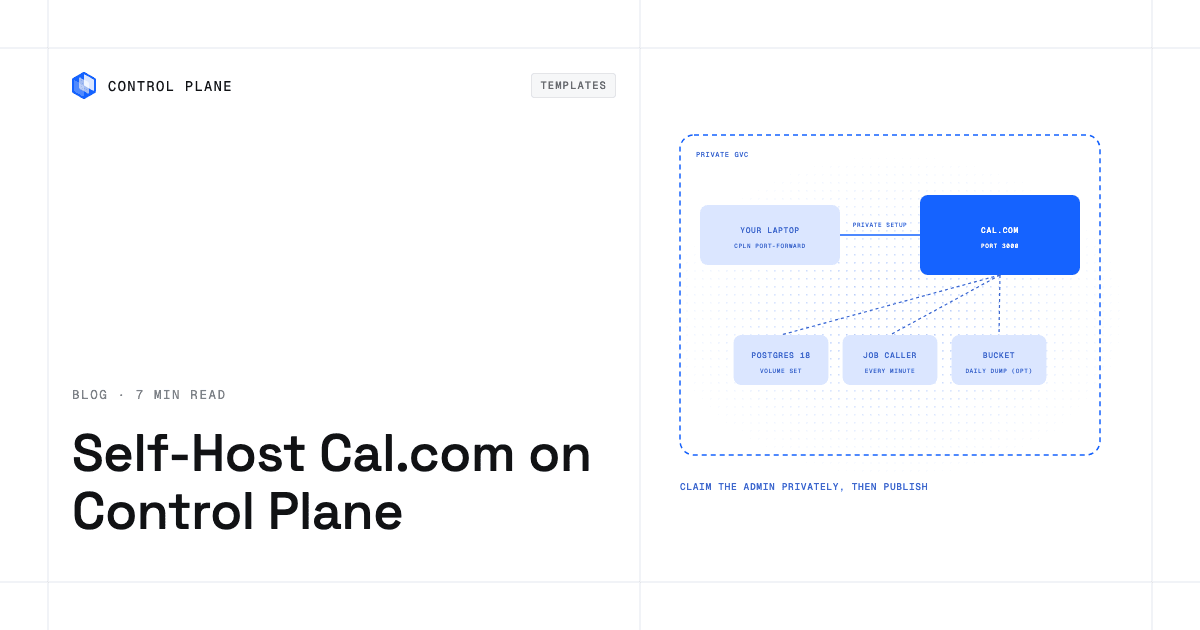
To self-host Cal.com on Control Plane, create two Control Plane dictionary secrets (application keys and database credentials) and install the Cal.com template from the Template Catalog, Control Plane’s library of ready-to-install apps. You get Cal.com 6.2.0, a bundled PostgreSQL, a workload that runs Cal.com’s scheduled jobs, and an install that stays private until you claim the admin account.
A prospect clicks your booking link, picks a slot, and the meeting lands on both calendars. Cal.com, a Calendly alternative, runs that flow, and self-hosting it keeps every attendee name and email in a database you own. Cal.com developed its code in the open for five years, under AGPLv3 since 2021, and that GitHub repository, now Cal.diy, has more than 49,000 stars. Self-hosting it has two quiet traps. Cal.com has no scheduler of its own, so if nothing calls its job endpoints, queued email and calendar sync stop while the app still reports healthy. And whoever opens /auth/setup first becomes the instance admin. The template closes both before you book your first meeting. One limit comes first: 6.2.0 is the final public Cal.com release, and the image receives no further updates or security patches.
Why self-host Cal.com on Control Plane
- A caller for the jobs Cal.com never runs itself. A small companion workload calls the scheduled-job endpoints every minute, so queued email, calendar sync and credential refresh keep moving. It accepts no inbound traffic.
- The admin seat is yours. The install is closed to the internet, so you create the admin account through a tunnel and only then publish the booking pages.
- Four keys, one secret. Session, encryption and job keys sit in a Control Plane dictionary secret (named key-value pairs) that the chart reads by name, never in Helm values.
- Identities that read only what they need. Cal.com’s Control Plane identity can reveal only the secrets it reads, and the database’s identity sees only its credentials.
- A database that comes with it. PostgreSQL is bundled, one flag swaps in a highly available cluster, and the stateless app tier takes a second replica.
Included out of the box
- Cal.com 6.2.0 (
calcom/cal.com:v6.2.0): the UI, public booking pages and/api/*on port 3000 - The scheduled-job caller, on by default
- PostgreSQL 18 on a 10 GiB volume set (Control Plane’s managed persistent storage for a workload), or a highly available three-node Patroni cluster behind one flag
- Database migrations and the app-store seed applied on every start, after PostgreSQL answers
- Cal.com’s telemetry turned off
- Optional SMTP for confirmations, invites and password resets
- Optional scheduled database backups to Amazon S3, Google Cloud Storage or MinIO
- Webhooks signed with HMAC-SHA256 in the
X-Cal-Signature-256header - Built-in Control Plane logs and metrics, with tracing available to turn on
How to keep Cal.com private while you claim the admin account
Leave publicAccess.enabled at false and run cpln port-forward RELEASE_NAME-calcom 3000:3000 --gvc GVC_NAME with the Control Plane CLI. Open http://localhost:3000/auth/setup at that exact origin, the one a private Cal.com issues its session cookie for. Create the admin account (the license step can be skipped), then finish the onboarding, which redirects every page until it is done. Set publicAccess.enabled: true and run cpln helm upgrade with your install values.
The firewall change takes from 30 seconds to several minutes, and it restarts Cal.com. At one replica that is about a minute of downtime, so set calcom.replicas: 2 if bookings must stay up. Once public, anyone who reaches Cal.com can sign up, and no environment variable in the official image turns signup off, so switch on the disable-signup feature flag under Settings, Admin, Features while the install is still private.
Internally, apps in the same Global Virtual Cloud (GVC), Control Plane’s term for the set of locations a workload runs in, reach Cal.com at http://RELEASE_NAME-calcom.GVC_NAME.cpln.local:3000. That default is same-gvc; internalAccess.type also takes same-org or workload-list.
How to store Cal.com’s keys and database credentials
The application keys secret holds nextAuthSecret, encryptionKey, cronSecret and cronApiKey; encryptionKey must be exactly 32 characters and encrypts every connected calendar and app credential, so back it up outside Control Plane and never replace it. The other keys can be rotated: update the secret, then run cpln workload force-redeployment on RELEASE_NAME-calcom, and on RELEASE_NAME-calcom-cron if you changed cronSecret.
The database secret holds username, password and database, using only letters, digits, - and _, because Cal.com builds its connection URL from them. Secret names are org-wide, so give each release its own pair.
How to back up Cal.com’s database
Backups are off until you set postgres.backup.enabled: true with a provider of aws, gcp or minio. A cron workload then writes a gzip-compressed pg_dumpall of the database to your bucket, daily at 02:00 UTC by default, so the copies sit in object storage apart from the database volume. In highly available mode, postgresHA.backup offers a daily logical dump or WAL-G backups every 6 hours.
Bucket, cloud account and IAM setup and the restore steps are in the PostgreSQL template docs, which say the S3 and MinIO paths were tested through a restore and GCS was not, so rehearse a GCS restore first.
How to scale Cal.com and keep it available
With calcom.replicas at two or more, the UI stays up through a rolling restart or a firewall change. For the database, set postgresHA.enabled: true and postgres.enabled: false at install. That runs three Patroni PostgreSQL replicas, three etcd members for leader election, and an HAProxy endpoint that routes Cal.com to the current leader.
Cal.com is a single-location install. Cal.com and its job caller run only in the location you set, but the bundled database starts in every GVC location, so install into a GVC with one location. Each extra location runs an empty database that is never read, and the app logs a warning naming it.
Which Cal.com features need a license?
Cal.com 6.2.0, released in March 2026, is the last version published to the public repository and the calcom/cal.com Docker image, and the template pins it. No later release exists to upgrade to, so security fixes made to the public code since March 2026 are not in this image. Weigh that before you publish booking pages for production use; Cal.com directs commercial and production use to its hosted service or enterprise on-premises access. In April 2026 Cal.com announced it is moving to closed source, citing AI-driven security risk. Its public code continues as Cal.diy, an MIT-licensed fork without the enterprise features, which Cal.com recommends for personal, non-production use. In 6.2.0, the enterprise directories are under Cal.com’s commercial license, which allows production use only with an Enterprise subscription, and the rest is AGPLv3.
The template runs the official image without a license key. Workflows, Organizations and other licensed features stay locked, and the separate v2 API service is not included. Teams run without a key, but team code sits in the commercially licensed directories, so check Cal.com’s terms before using teams in production. Google Calendar, Outlook Calendar and Zoom need your own OAuth app, with keys entered at /settings/admin/apps. Turn email on before you invite anyone.
How to deploy Cal.com on Control Plane
Sign up for Control Plane and create both secrets before you install: without them the deployment never becomes ready and cpln logs stays empty. Then pick Cal.com in the Template Catalog in the Control Plane Console, or install it into a GVC with one location, with location set to it:
cpln helm install RELEASE_NAME oci://ghcr.io/controlplane-com/templates/calcom \
  --version 1.0.0 --gvc GVC_NAME \
  --set location=LOCATION_NAME \
  --set calcom.auth.secretName=APP_KEYS_SECRET_NAME \
  --set postgres.config.credentialsSecretName=DB_CREDENTIALS_SECRET_NAME
The Cal.com template documentation has the secret commands, email and calendar setup, webhooks and troubleshooting.
FAQ
Answers to common questions about running Cal.com on Control Plane.
How do I self-host Cal.com?
Create a dictionary secret with the four application keys and a second one with the database credentials, then install the Cal.com template from the Template Catalog in the Control Plane Console or with cpln helm install. The template creates the app, the job caller, PostgreSQL, and identities scoped to those secrets.
Is Cal.com still open source and free to self-host?
Cal.com announced in April 2026 that it is moving to closed source. Version 6.2.0, the last public release and the one this template runs, has a free AGPLv3 core, while Workflows, Organizations and other enterprise features need a Cal.com license. The 6.2.0 image gets no further updates or security patches, and the open code continues as Cal.diy, an MIT-licensed fork that Cal.com recommends for personal, non-production use.
Why is my self-hosted Cal.com not sending emails or syncing calendars?
Cal.com has no built-in scheduler, so queued email and calendar sync run only when something calls its job endpoints; the template’s caller does that every minute. Confirmations, invites and password resets also need SMTP, off until you set email.enabled: true.
How do I create the admin account on a self-hosted Cal.com?
Keep the install private, run cpln port-forward, and open http://localhost:3000/auth/setup. Whoever completes that page first becomes the instance admin, so the template starts with public access off.
How do I back up a self-hosted Cal.com?
Back up its PostgreSQL database. Set postgres.backup.enabled: true with a provider of aws, gcp or minio, and a cron workload uploads a compressed pg_dumpall daily at 02:00 UTC by default. Keep a copy of encryptionKey too: it encrypts connected calendar credentials.
How do I disable signup on a self-hosted Cal.com?
Turn on the disable-signup feature flag under Settings, Admin, Features, right after you claim the admin account. Cal.com has no environment variable for it.
Can I run Cal.com on Kubernetes?
Yes, without operating a cluster. cpln helm install uses a Helm chart, and Control Plane runs the workloads. To use a Kubernetes cluster you already run, add it as a Bring Your Own Kubernetes (BYOK) location.
Can Cal.com on Control Plane run in more than one region?
One location per install. Each extra location in the GVC would start its own empty database. For database failover inside that location, enable the highly available PostgreSQL mode.